Asus Ultrabook Announcement
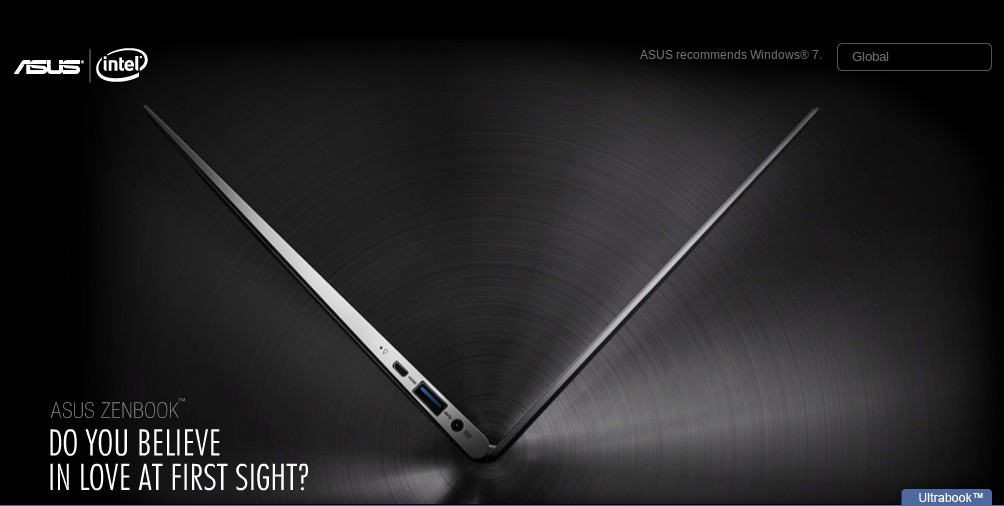
Last week ASUS revealed their ultrabook pricing starting at US$999 (11.6" UX21) and US$1099 (13.3" UX31). Branded as ‘Zenbooks’, their specifications match or beat the MacBook Air. Hoping that CF King brings them in at a good price
Brief Specifications (Specifications from ASUS)
- UX21
- 11.6" screen. Resolution: 1366x768
- 5+ hours battery life
- 128GB SSD
- US$999: Core i5
- US$1199: Core i7
- UX31
- 13.3" screen. Resolution: 1600x900
- 7+ hours battery life
- SD card reader
- US$1099: Core i5, 128GB SSD
- US$1349: Core i5, 256GB SSD
- US$1449: Core i7, 256GB SSD
- 4GB RAM
- 2 second resume
- Bluetooth 4.0
- Ports: 1 x USB 2.0, 1 x USB 3.0, microHDMI, microVGA
Other coverage from Engadget, This is My Next, Ubergizmo (Ubergizmo states that the devices come with with USB to ethernet and miniVGA to VGA adapter).
Asus Ultrabook Announcement: UX21/UX31 (starting at US$999/$1099) (mp3)
Sony Ericsson Live with Walkman available in Brunei for B$350 at Incomm and QQeStore
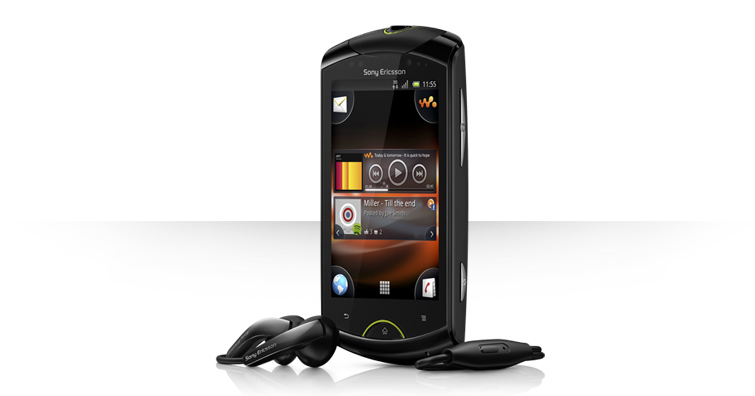
Seems like a great budget Android phone with a slightly larger screen than the Xperia Mini pro but without a keyboard to make it more svelte. Seems to share all the same common good specifications for a budget phone but a slightly larger screen and slightly cheaper at B$350. Quick Specifications- Android 2.3
- 320 x 480 pixels, 3.2" capacitive screen
- 1GHz Processor
- 512MB RAM
- 320MB for applications
- 5 megapixel camera w/ 720p video
- Front facing VGA camera
- xLOUD™ loudness enhancement makes it possible to listen loud without distortion.
Full specifications / details at Sony Ericsson / GSM Arena Buy at Incomm or QQeStore
Introducing the Byte of the Day

Download link: Introducing the byte of the day (mp3)
We are adding another show to the podcast line up to give quicker technology news updates and just provide a small snippet of information. We are gearing this more for current news items and events by summarizing them in under 5 minutes.
Audioboo is being used as the backend as it allows quick mobile uploads from any device supported. Due to that, it will take some time to integrate it properly with the website so the best way to follow is just to subscribe to the Byte of the Day feed or follow us on Twitter where it should auto tweet the podcast.
P.S. I know that the date says 19th September which was the day I recorded the introductory episode which was needed for the iTunes feed. Also it seems that Audioboo auto-tweeted the episode that day but am only officially launching it now (i.e. some episodes to come very soon) =)
Gagalcast 2: Windows 8 Developer Preview Installation Fail
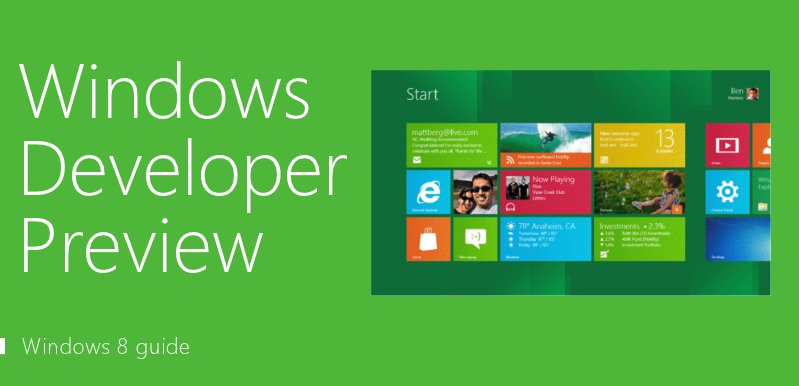 When Windows 8 Developer Preview was released (download your copy here) to enthusiasts and developers, we were excited to try it out. Sadly our enthusiasm was curbed as we learned to fail at Step 1: Installation of the OS…
Hello World - Welcome to CornerGeeks.com!
Yes the typical and cliché introduction for any technology related topic. But yes, CornerGeeks.com is officially open for beta testing. We are in iTunes and proper RSS feeds for your podcather and available for audio shows. This is still a work in progress and suggestions and feedback are mostly welcome =)
Corner Geeks 11: SugarSync
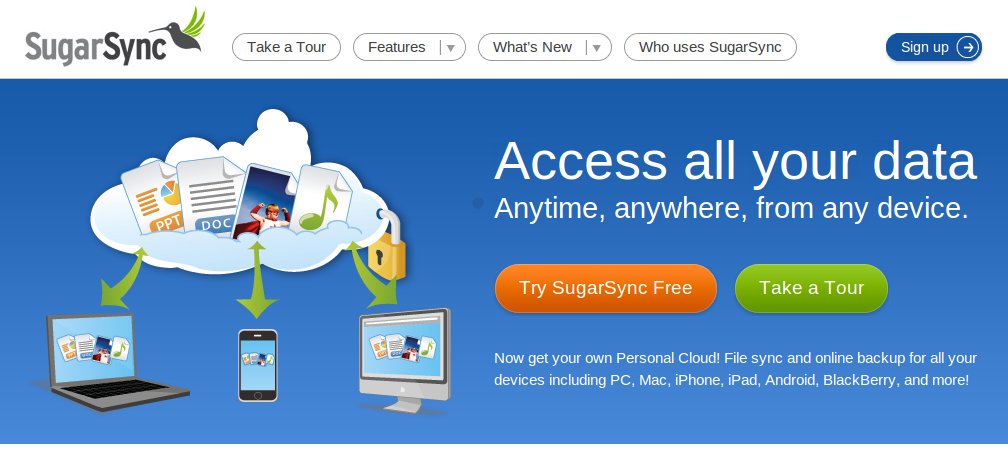
SugarSync
-
Free 5GB with no file size limit (source)
-
SugarSync’s comparison page
-
Main Sections
-
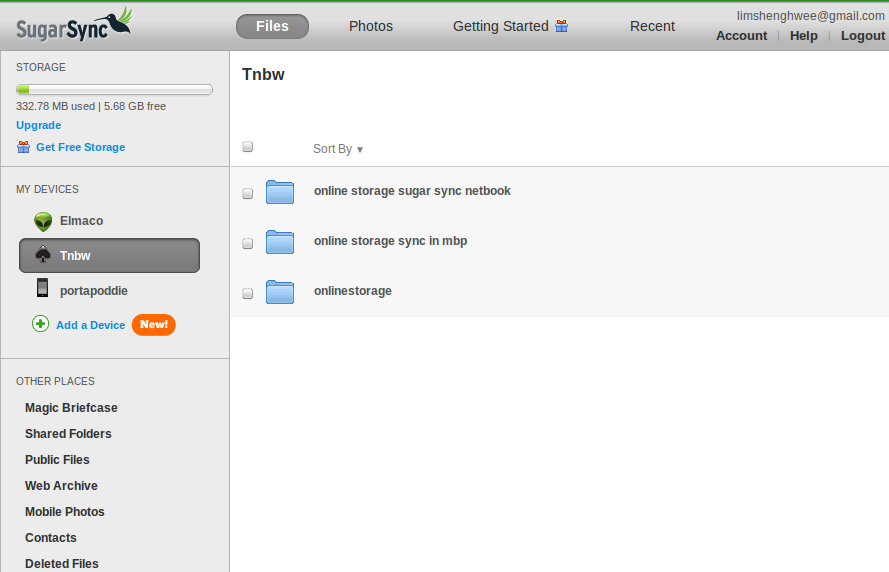
Synced Folders: select which folders which are to be available for syncing with other devices (can select any folder on computer and use SugarSync manager to select with folders to Sync with)
-
Magic Briefcase is the Dropbox folder. Anything in it will be synced to all computers with it installed
-
Web Archive: web backup but not available to sync
-
Mobile Photos: photos from mobile devices
-
Upload by email
-
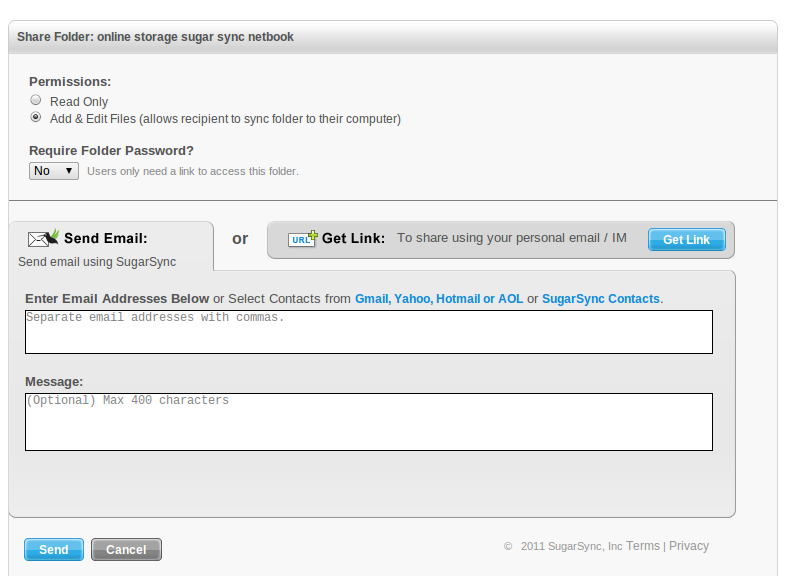
Good sharing: can share within app itself. read / write access
-
Selectively share any file
-
Share folder
-
Photo gallery (to public)
-
File structure (to SugarSync users)
-
Web Client available
-
Mobile Client applications are pretty full featured:
- Can share folders / files straight from the device
- Ability to manually sync folders/files to the device: good if going offline
- Added bonus: Android does background photo upload and syncing.
-
Cons: Versions only 5 previous versions
-
Availability: Windows, OS X (No Linux), iOS (iPhone, iPad, iPod touch), Android, BlackBerry, Windows Mobile, Symbian
-
500MB referral bonus (free account) or 10GB if referral to paid subscriptions of 30GB or more with no limit (source)
-
Cheaper than Dropbox (SugarSync plans vs Dropbox plans)
-
30GB @ $4.99/month or $49.9/year
-
60GB @ $9.99/month or $99.99/year
-
100GB @ $14.99/month or $149.99/year
-
250GB @ $24.99/month or $249.99/year
Corner Geeks 10: Online Storage and Dropbox

Dropbox https://www.dropbox.com
-
Free 2GB with no file size limit
-
Can increase storage by referrals (250MB for each up to 8GB). Must sign up and Install
-
A Dropbox folder . Anything you drop there will be synced to any computer that access to the same folders
-
Stored locally on computer (no need to download to retrieve as it is auto downloaded when changed elsewhere)
-
Simple. Just save files in the Dropbox folder
-
Can share folders (full read and write access only)
-
Versions of documents for the past 30 days
-
Public folder: but folder link does not show all files in that folder, i.e. must direct link to each file
-
Bandwidth limits for public files: 10GB/day limit for free plans, 250GB/day for paid plans
-
Quite expensive for paid plans:
- 50GB $9.99/month or $99.99/year
- 100GB $19.99/month or $199.00/year
-
Clients for: Windows, OS X, Linux, iOS, Android, BlackBerry
-
Web Access via website
-
Closed source
-
Recent security issues: optional passwords, config.db issue
Corner Geeks 9: Live Streaming setup for Ran8adidas
Show Notes
What we wanted
- Live streaming of the event
- Video
- multiple cameras if possible
- perhaps one overview shot
- one on-the-go camera following events like the Twitter hunt. Follow contestants around “Amazing Race” style
- Sound
- clean sound from the mixer for opening ceremony / speeches
- also want to capture atmosphere/sound around the camera
- Internet
- need for streaming
- simplest of them all. 3G dongle
- Master control at the laptop controllilng the stream / switching audio and video accordingly
Mobile video
- DSLR / camcorder approach:
- Possible but need wireless transmitters making it cumbersome
- DSLR sensor limited time
- Keep-it-Simple-Stupid approach:
- Use smartphones with Wifi and cameras
- Small, simple, only need wireless access point if needed
- Possible to attach external microphone to device for interviews
- Advantages
- Can move around freely
- Requires no additional hardware for video capture hardware on computer.
- Fairly cheap and easy to setup if you already have the devices (more people have smartphones now)
- Disadvantages
- Latency
- Lower quality?
- Potentially unreliable connection vs wires? Wireless inteference. Network going down?
- No zoom!
- Mobile Video apps
- IP Webcam
- Android
- Free
- Starts a webserver on camera device. Accessible from any computer on the network. View and listen in a browser
- PocketCam (Desktop software)
- iOS / Android
- US$4.99 / BND$6
- Windows or OS X software to be installed on the host
- Creates video and audio device driver on host. Once connected access like a webcamera and USB mircophone
- Audio lag!
- WebCamera
- iOS / Blackbery / WinMo / Symbian
- US$2.99 / US$19.95 / US$19.95 / US$9.95
- Works similar to PocketCam: Windows or OS X software to be installed on the host
- Used iOS version that can take video and photo from camera and it will send it to host computer
- There are other apps for Android and iOS but many do not provide audio which is what we wanted
- IP Webcam
- Multiple Camera feasibility study
- IP Camera: separate VLC instance for each video and each audio for each camera. Gets complicated very fast
- Pocket Camera / WebCamera: only one PocketCamera / Webcamera host software allowed to run at one time on one machine
- Not possible to use multiple cameras using only one app. Mixer and match is possible
- Needed proper communication between in-the-field camera user and master control
Sound
- Input from mixer via line-in on laptop (not don’t have get a USB sound card)
- LadioCast for audio mixing and piping of audio. Can even monitor sound without sending it to live stream
Internet
- Needed wireless coverage
- Used iPod Touch as a WiFi signal monitor. Activated voice control, tap the wireless signal to hear the strength level (probably there is an app for this but did not explore)
- To forgoe a 3G router: OS X Internet sharing (Connetify.me for Windows)
Other things we used
- Phone holder to tripod mount
- Can get the at a shop in the Mall, near Netcom. Can’t remember name
- Others options at DealExtreme
- Tripod: can place camera in certain places. Can extend tripod to get different angles
- Charging cables! Must remember to charge mobile devices. iPod Touch 4G lasted about 2 hours of streaming
Final Setup
- iOS Webcamera easiest to work with
- CamTwist to add overlays
- Ladiocast to pipe audio. Connected to mixer when needed. Add microphone from the mobile cameras when interviewing / asking questions
- Tripod to place camera so no need to be there
- uStream to send out stream and record it
Other Considerations
- Phone upgrades:
- External microphone using Steel Series Headet adapter (Kiulap) which gives headphone output and microphone input. can be used for better interviews
- Battery packs
- Stablizers / Lens
- Owle Bubo
- SLR Lens mount Photojojo
- Other Links
- External Microphones for iPhone 4, iPad and iPod Touch Audio input
- Handheld Hollywood: Site for using things like iPhone and stuff for content creation.
- Have a sign that says, “we’re streaming live”. While recording I was thinking of the implications of this for privacy
- Have a dedicated chat room to interact with the viewers. At least had a screen of some hashtag that we could sometimes show on twitter.
- Get better upstream for better video and audio
- Have a dedicated screen / projector / laptop on our booth showing what’s streaming.
Gagalcast 1: Pilot Episode

Sadly there is no episode of Corner Geeks this week so we present Gagalcast: because we all fail now or then. Basically Gagalcast is random discussions before or after Corner Geeks recordings or just random discussion. This episode was recording after Corner Geeks 7: The Brunei Apple App Store at Patisserie in Gadong.
There are several videos to be released so stayed tuned and we should be back next week!